Excercise 4
EPC 3 –Ex.No.4:
To use a laptop /pc for preparing slides for PowerPoint presentations/ lectures and also download the video resources available on the internet and use them embedded with slide presentations.
POWER POINT PRESENTATION
It is a presentation-based program that uses graphics, videos, etc. to make a presentation more interactive and interesting. The file extension of a saved Powerpoint presentation is “.ppt”. A PowerPoint presentation comprising slides and other features is also known as PPT.
STEPS :
- Click on the start button
- Then choose “All Programs”
- Next step is to select “MS Office”
- Under MS Office, click on the “MS PowerPoint”
A blank presentation is open on the screen. According to the requirement, a person can modify the template for a presentation and start using the program.
Uses of PowerPoint Presentation
PowerPoint presentations are useful for both personal and professional usage. Given below are a few of the major fields where PPT is extremely useful:
- Education – With e-learning and smart classes being chosen as a common mode of education today, PowerPoint presentations can help in making education more interactive and attract students towards the modified version of studying
- Marketing – In the field of marketing, PowerPoint presentations can be extremely important. Using graphs and charts, numbers can be shown more evidently and clearly which may be ignored by the viewer if being read
- Business – To invite investors or to show the increase or decrease in profits, MS PowerPoint can be used
- Creating Resumes – Digital resumes can be formed using MS PowerPoint. Different patterns, photograph, etc. can be added to the resume
- Depicting Growth – Since both graphics and text can be added in a presentation, depicting the growth of a company, business, student’s marks, etc. is easier using PPT
Features of MS PowerPoint
There are multiple features that are available in MS PowerPoint which can customise and optimise a presentation. The same have been discussed below.
- Slide Layout
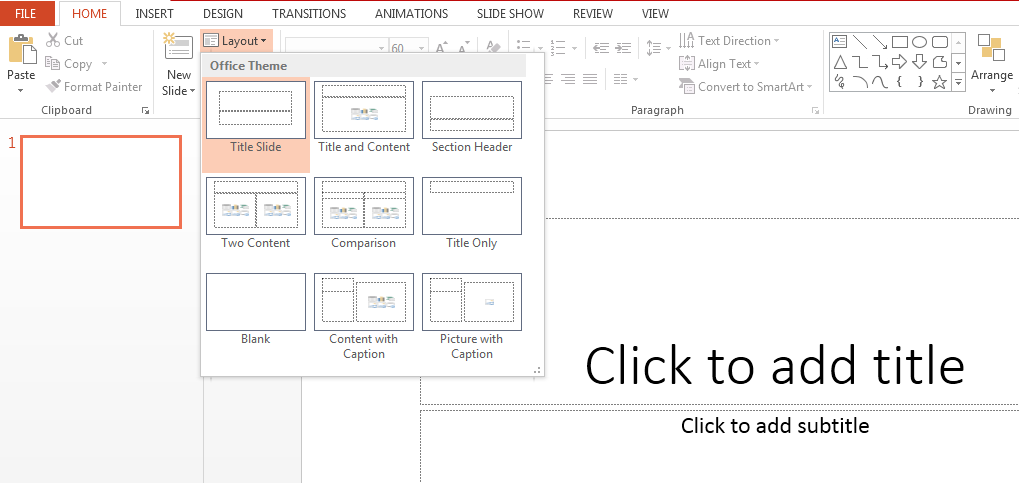
Multiple options and layouts are available based on which a presentation can be created. This option is available under the “Home” section and one can select from the multiple layout options provided.
The image below shows the different slide layout options which are available for use:
- Insert – Clipart, Video, Audio, etc.
Under the “Insert” category, multiple options are available where one can choose what feature they want to insert in their presentation. This may include images, audio, video, header, footer, symbols, shapes, etc.
The image below shows the features which can be inserted:

- Slide Design
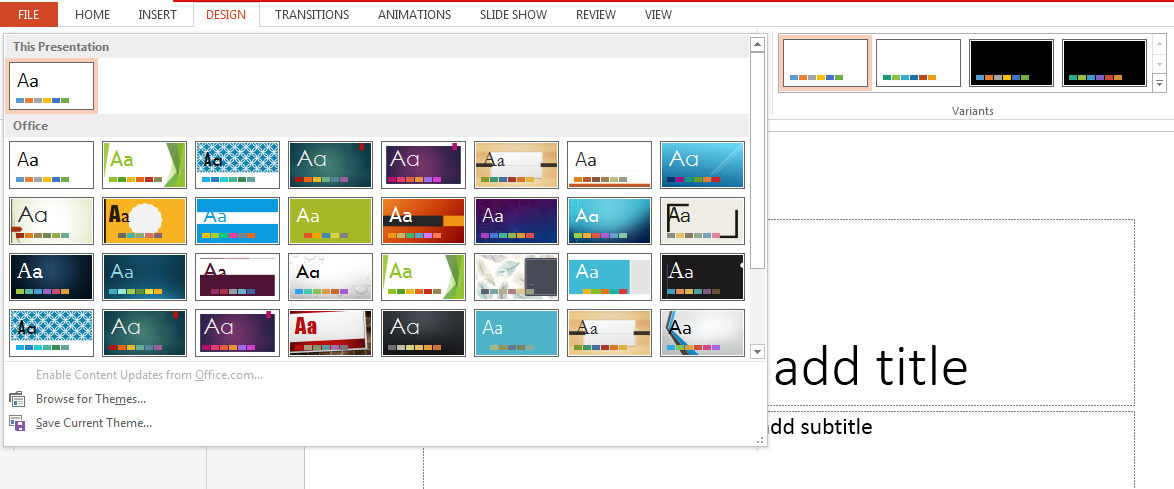
MS PowerPoint has various themes using which background colour and designs or textures can be added to a slide. This makes the presentation more colourful and attracts the attention of the people looking at it.
This feature can be added using the “Design” category mentioned on the homepage of MS PowerPoint. Although there are existing design templates available, in case someone wants to add some new texture or colour, the option to customise the design is also available. Apart from this, slide designs can also be downloaded online.
Refer to the below for slide design:
- Animations
During the slide show, the slides appear on the screen one after the other. In case, one wants to add some animations to the way in which a slide presents itself, they can refer to the “Animations” category.
The different animation styles available on PowerPoint are:

Apart from all these options; font size, font style, font colour, word art, date and time, etc. can also be added to a PPT.


Comments
Post a Comment